Showing posts with label Computer-Tips. Show all posts

Wednesday, June 11, 2014

Steam Change Passowrd

Steam Change Password

Steam Change Password Method

Easy Trick for Steam Change Password

In steam change password we will discuss how to change steam password.Steam is huge platform for downloading games and a lots of people want to change steam password to make it more secure, but they don,t know that how to change password in steam. Today we are going to solve this problem for you that will be very easy to understand and beneficial for you. There is a method for changing the steam password in windows and Mac. You must follow these instruction to change password. I hope you will easily understand it.

Steps for steam change password for Windows

  • First of open the steam application.
  • Click on steam in the upper menu then click on settings. fig-1
  • A settings window will be open now click on account in left menu. fig-2
  • Now click on "Change Password or Secret Question" as highlighted in fig-2.
  • Now check the radio button "I want to change my password" for changing the steam password and then click "Next" button. fig-3
  • A change password wizard will be open. Now enter your old password in highlighted field as shown in fig-4 and click on "Next" button.
  • After this you will receive an email through which you are registered on steam. This email contains a code.
  • Now enter this code in first highlighted field and then enter new password in second field and also confirm password in third field and click on "Next" button. fig-5
  • Now you will receive a message "Your password has been successfully changed". Now click on "Finish" button.
Steam Change Password
Steam Change Password fig-1
Change Steam Password
Steam Change Password fig-2
Steam Change Password Method
Steam Change Password fig-3
Change Steam Password Method
Steam Change Password fig-4
Steps to Steam Change Password
Steam Change Password fig-5

Steps for steam change password for Mac

  • First of open the steam application.
  • Click on steam in the upper menu then click on preferences.
  • A settings window will be open now click on account in left menu.
  • Now click on "Change Password or Secret Question".
  • Now check the radio button "I want to change my password" for changing the steam password and then click "Next" button.
  • A change password wizard will be open. Now enter your old password and click on "Next" button.
  • After this you will receive an email through which you are registered on steam. This email contains a code.
  • Now enter this code in first field and then enter new password in second field and also confirm password in third field and click on "Next" button.
  • Now you will receive a message "Your password has been successfully changed". Now click on "Finish" button.
These are the methods for changing steam password for windows and Mac. This is very simple and easy approach to change the steam password. Now change your password and enjoy the steam. If you think this post is helpful for you then share with your friends.
1:14 AMNo comments

Wednesday, May 28, 2014

How to speed up my laptop

How to speed up my laptop

Tips for how to speed up my laptop

How to speed up my laptop windows 7

Some people are very worry about their Laptop and PC performance. Their laptops work very slow and they install different types of third party softwares that make their laptops more slow and then these people go to install new windows again and again after some days. This is not a good solution. That's why we wrote this article for all my visitors. In this article we will explain some tips that speed up your laptop. There is no need to install any third party soft wares, just follow the given instructions that are given in How to speed up my laptop.
  1. Some people like animations and other beautiful windows graphics features that consume your laptop resources. So avoid these things, just use a simple theme on your laptop which is "Windows 7 Basic" theme. You can change your windows 7 theme by following the given steps. These steps are also illustrated by figures.
    • Go to your desktop.
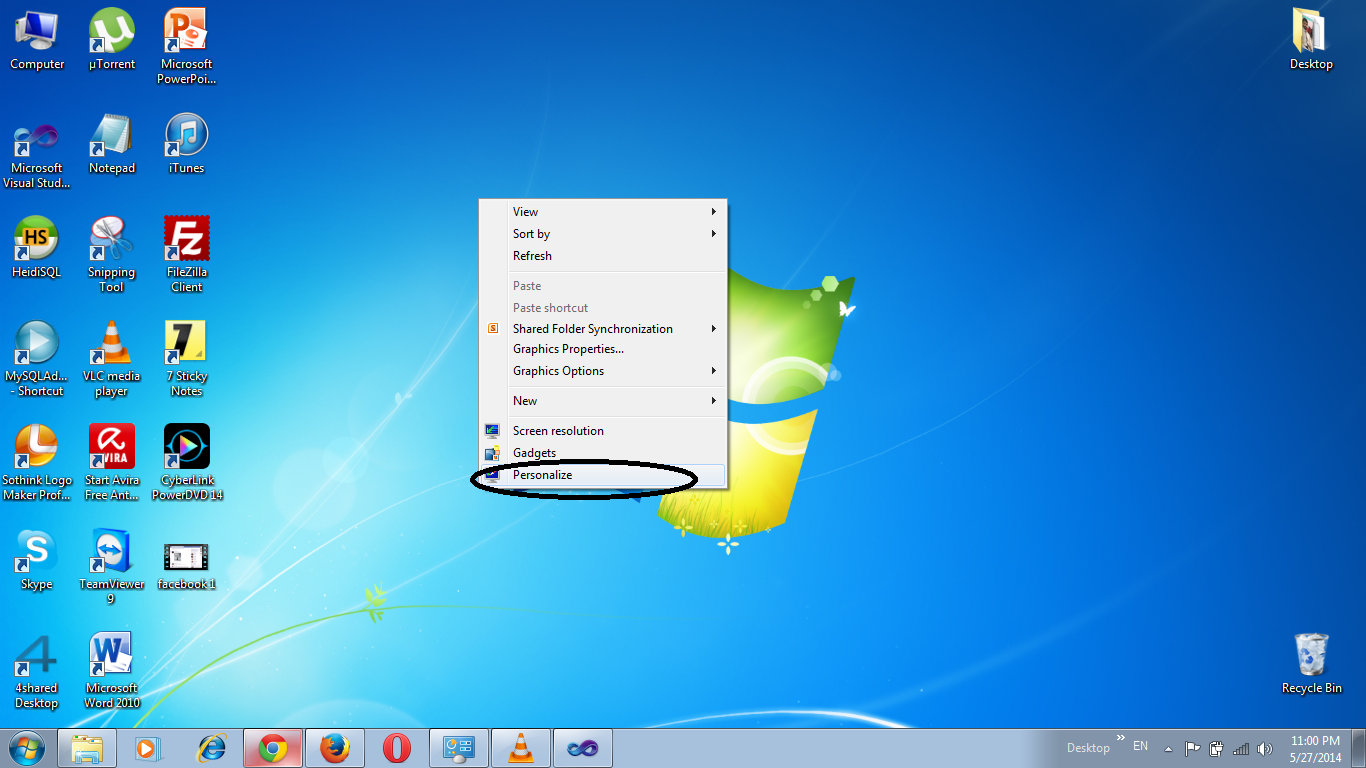
    • Right click on desktop and then click on "Personalize". (fig 1.1)
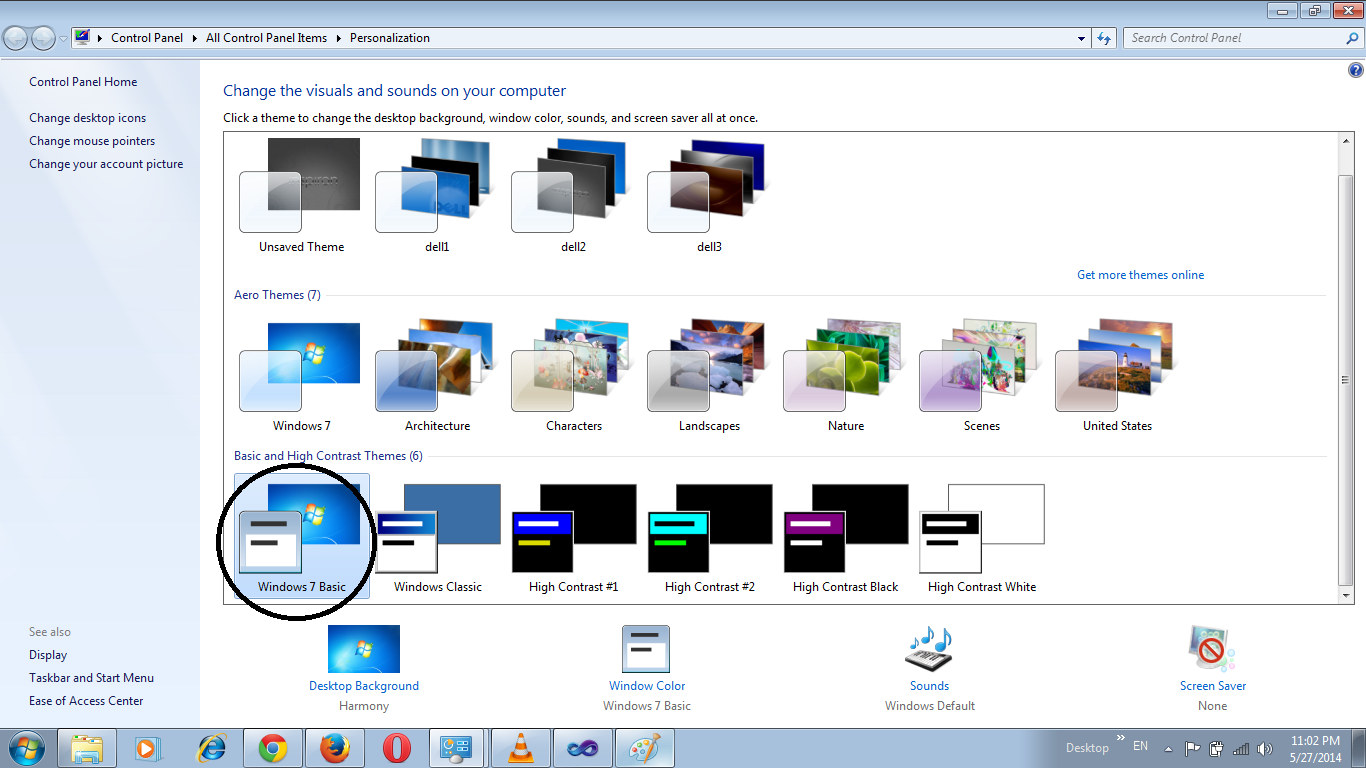
    • Scroll down to "Basic and High Contrast Theme" and click on "Windows 7 Basic" as shown in fig 1.2.
    You can also use "Windows Classic" theme for better performance but its looking to old so "Windows 7 Basic" theme is enough.
    How to speed up my laptop
    fig-1.1
    How to speed up my laptop windows 7
    fig-1.2
  2. Second step to speed up your laptop is performance settings. Which you can change by following the given steps as follows.
    • Right click on "My Computer" and then click on "Properties" as shown in fig 2.1.
    • Click on "Advanced Settings" (fig 2.2) a dialogue box will appear.
    • In "Advanced" tab click on "Settings" (fig 2.3). Another dialogue box will appear.
    • In first highlighted circle different options are given for best appearance and for best performance. In first option windows automatically choose the best options. You can also choose "Custom" option to manage it according to your own choice. (fig 2.4)
    • In second highlighted circle different options are given to change the appearance of your graphical interface.
    • After selecting the options click on "Apply" button and then click on "OK" button.
    How to speed up my laptop windows 7
    fig-2.1
    Tips how to speed up laptop
    fig-2.2
    Tips to speed up laptop
    fig-2.3
    How to speed up my laptop windows 7
    fig-2.4

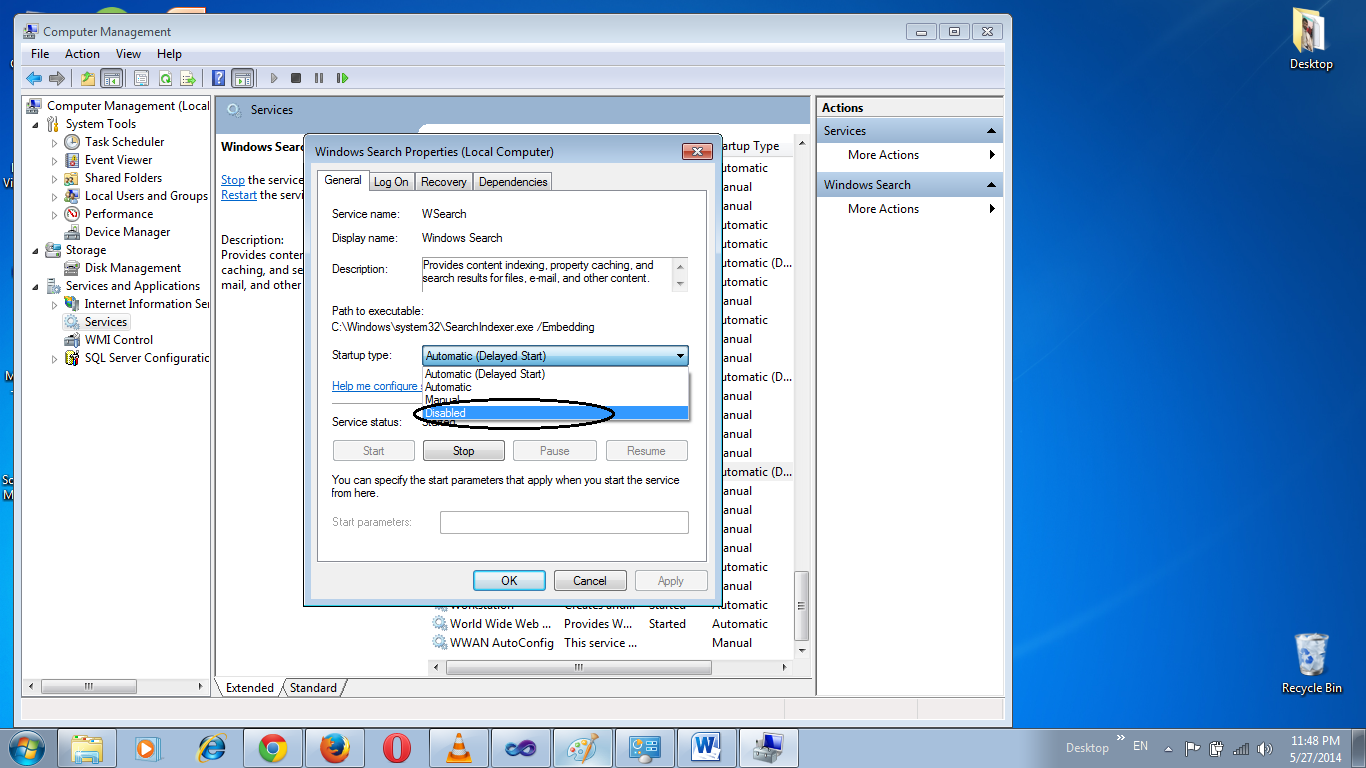
  3. Third step to speed up your laptop or pc is by disabling the some windows services that are not very important for laptop. Most of the computer users don't know this trick. You can disable the window service by follow the given instructions.
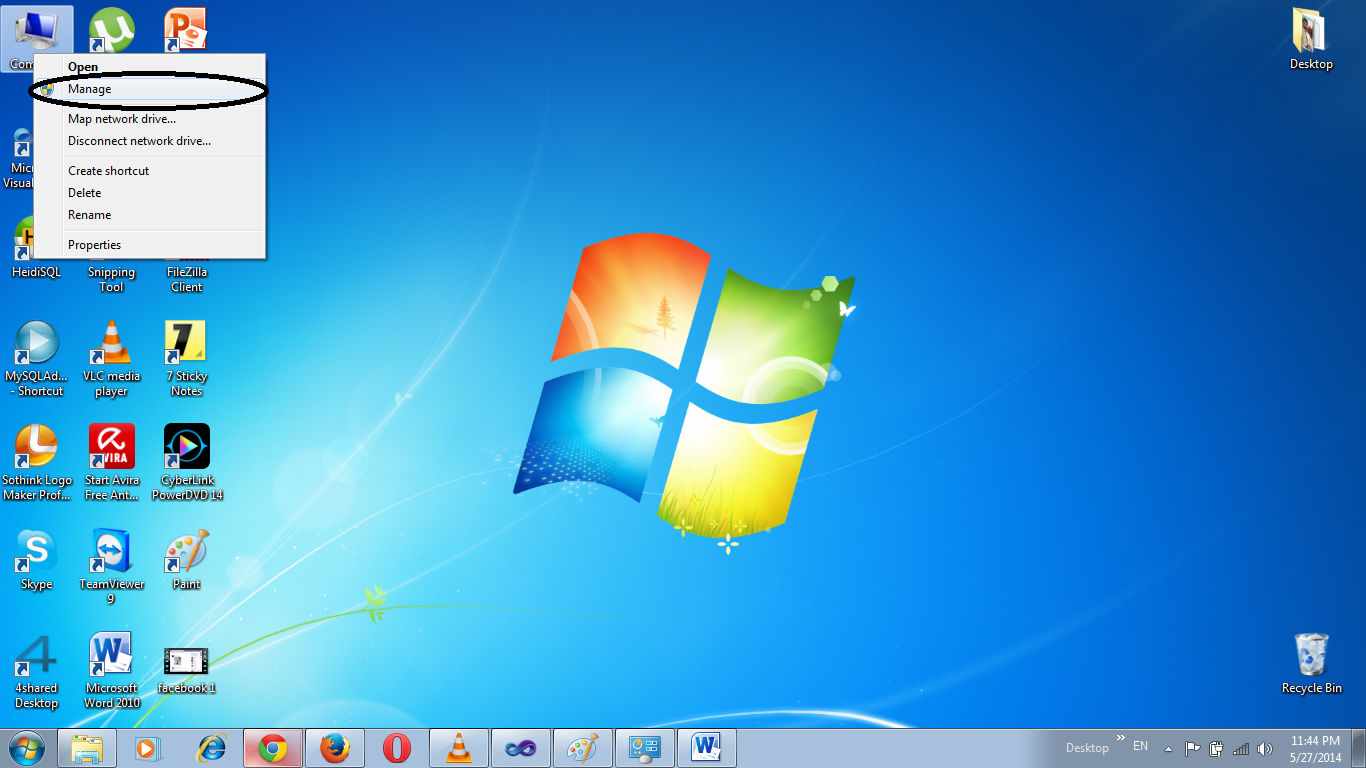
    • First of all Right click on "My Computer" and then click on "Manage" (fig 3.1) a window will open.
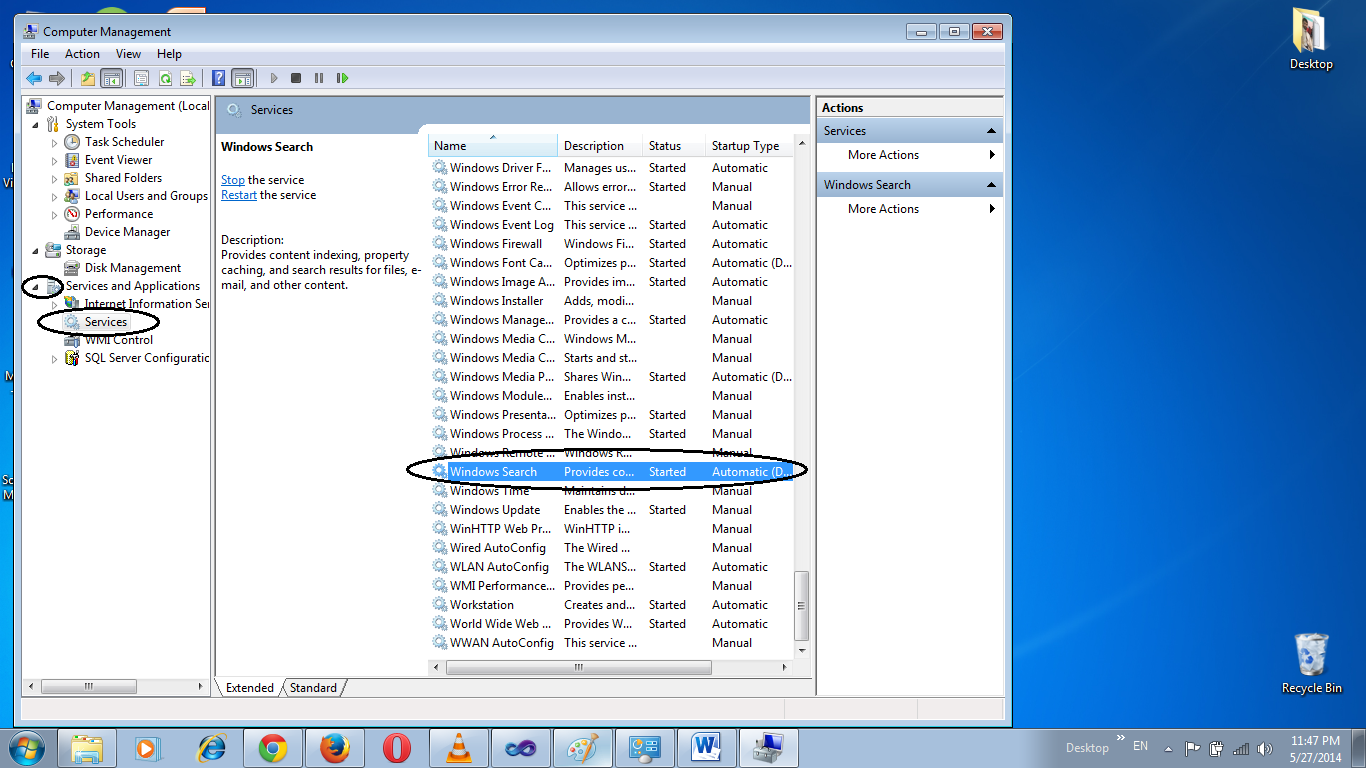
    • In left pane expand the "Services and Applications" and then click on "Services" all services will appear in main window. (fig 3.2)
    • Scroll down to the "Windows Search" services. (fig 3.2)
    • Double click on the "Windows Search" service a dialogue box will appear. (fig 3.3)
    • In "Startup Type" drop down list select the "Disabled" option. (fig 3.3) and then click on "Apply" button and then click "OK".
    How to speed up windows 7 laptop
    fig-3.1
    How to speed up my windows 7 laptop
    fig-3.2
    Tips to speed up laptop
    fig-3.3

  4. The fourth step to speed up your laptop is by turning off the some features of windows that are not in use. You can turn off your features by follow the given steps as follows.
    • Go to your windows control panel. (fig(4.1)
    • Click on "Programs". (fig 4.2)
    • Click on "Turn Windows Features On or Off". (fig 4.3) A dialogue box will appear.
    • In dialogue box uncheck the features that you are not use (e.g. most of the people do not use "Internet Explorer") so uncheck the "Internet Explorer" and click "OK". (fig 4.4)
    How to speed up my laptop
    fig-4.1
    Tips to speed up windows 7 laptop
    fig-4.2
    Tips to speed up laptop windows 7
    fig-4.3
    How to speed up my laptop
    fig-4.4
These are the very useful tips for how to speed up my laptop. You must follow these tips and share with your friends. I hope you would like our this post. So don't forget to comment.
12:22 PMNo comments